How does Bunse use my income and Income History?
Your monthly take-home pay sets what's left in your budget, and Income History keeps each month's real figure.
Updated 1 October 2026
Your monthly income is your take-home pay, after tax, as it lands in your account. Bunse uses it to show what's left after your budget, and to work out your savings rate for the flame on your Overview.
Change your income
- Open the Budget tab.
- Tap the pencil on the Monthly income card.
- Enter your new take-home pay and confirm.
The new figure applies from this month. Earlier months keep what they were, in Income History.
Income History
Tap Show History on the Monthly income card to see your income for each of the last 12 months.
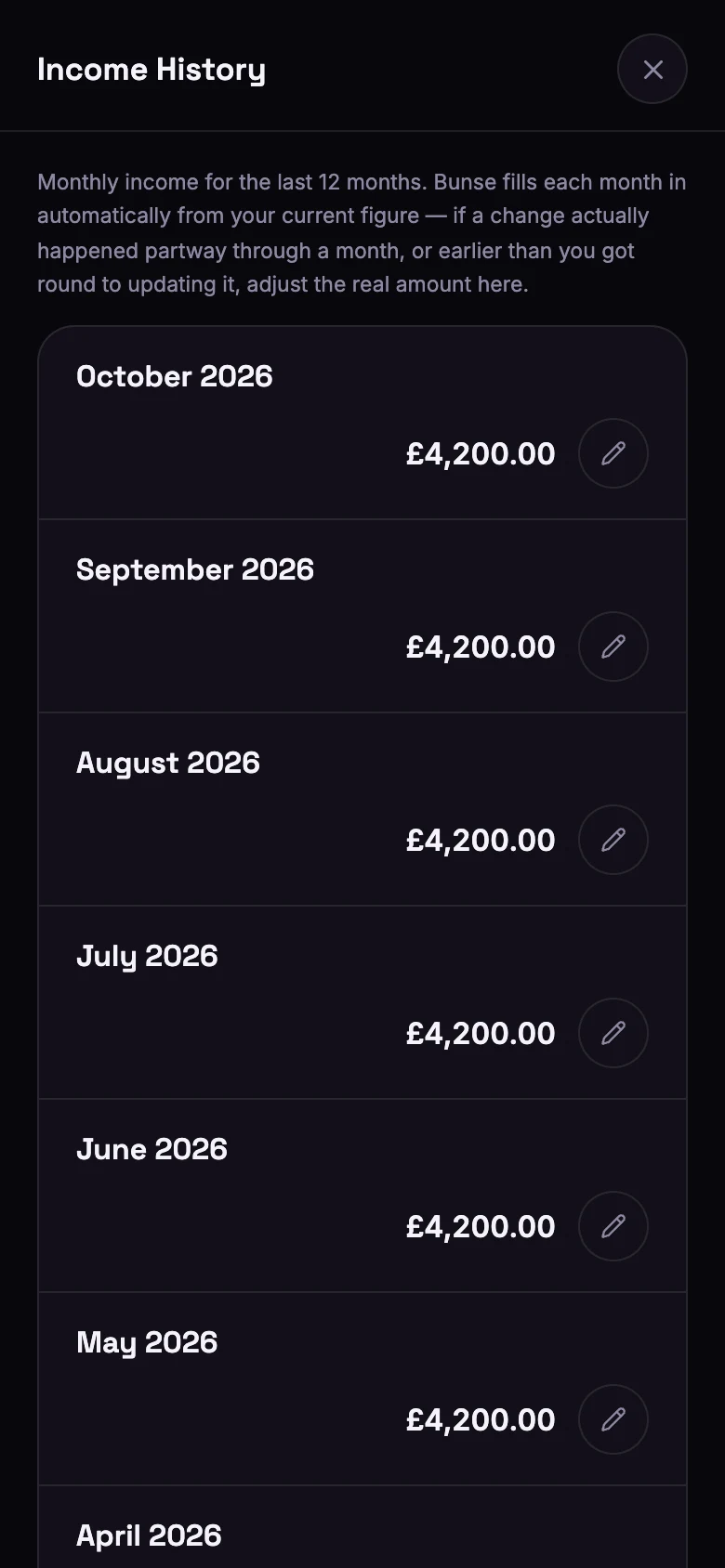
- Bunse fills in each new month from your current figure the next time you open the app, so you don't have to.
- Correct a month with its pencil. For example, if a pay rise started partway through a month, or you had a bonus or overtime.
- The first time you set your income, Bunse fills in the last 12 months at that figure. Change any that were different.
Where Bunse uses it
- The Budget tab shows what's left after your planned spending.
- Insights › Income vs Expense compares each month's spending with that month's income from Income History, not today's figure.
- The flame's savings rate compares what you spent in each recent month with your income for that month.
Tip
If your pay changes from month to month, enter a typical month as your income, then correct each month in Income History once you know the real figure.