How do I import a bank statement?
Bring a month or more of transactions into your budget, check Bunse's suggested matches, then confirm.
Updated 1 October 2026
Import a statement whenever you want to bring your budget up to date. Bunse matches each payment to your budget lines, and remembers what you choose, so every import needs less sorting than the last. The file is read on your phone and isn't uploaded anywhere.
Need the file first? See how to export transactions from your bank.
Import the file
- Open the Budget tab and tap Transactions.
- Tap Import and choose your file. CSV, QIF, OFX, QFX and QBO files all work.
- For a CSV, check the columns Bunse has picked (date, amount and description), then tap Preview. If your bank puts money in and money out in separate columns, choose both.
Nothing is saved until you confirm, so you can back out at any point.
Check the suggested matches
The preview starts with Suggested matches: the merchants Bunse thinks belong to one of your budget lines, grouped so one tap covers every payment from that merchant in the file.
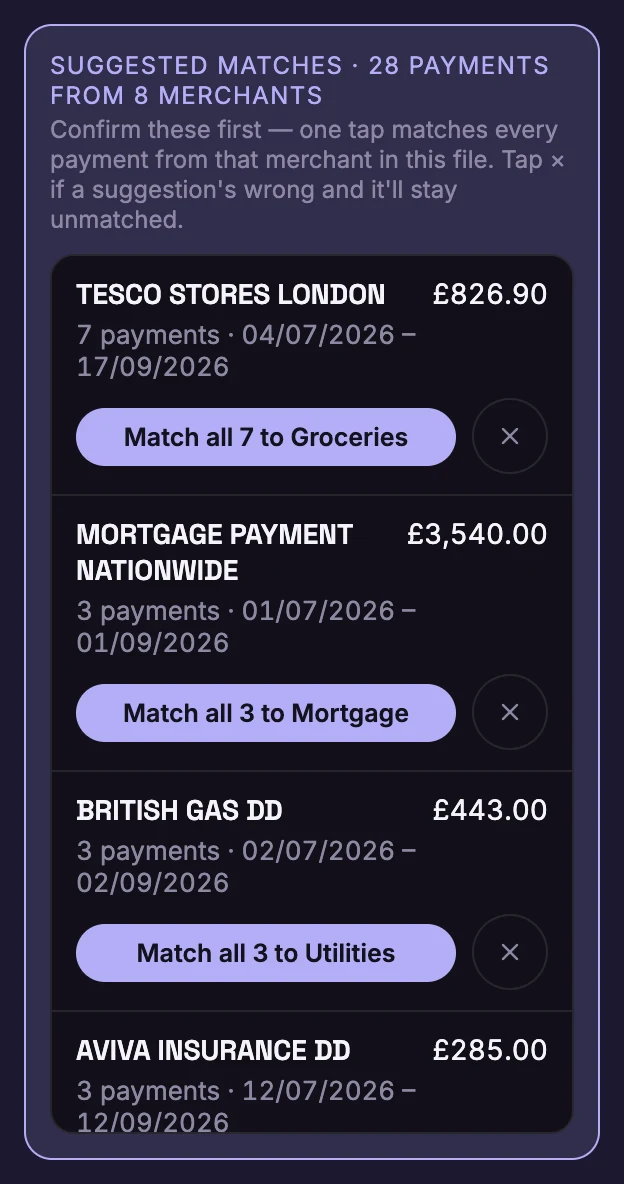
- Tap Match all … to to confirm a suggestion.
- Tap × if it's wrong. Those payments stay unmatched, for you to assign after the import.
Check everything else
Below the suggestions is Everything else. A few things Bunse does for you here:
- Money coming in is unticked. Pay and other money in isn't budget spending. Tick a row if you do want it included.
- Payments you've already imported are unticked and marked as a duplicate, so an overlapping statement never adds a payment twice.
- Cash withdrawals, transfers, card repayments and savings top-ups are tagged, for example CASH or → Emergency fund. They're kept out of your spending totals, because the money hasn't been spent, or Bunse can't see what on. If a tag is wrong, tap it, then tap Remove.
If every amount looks the wrong way round, with spending showing as money in, tap Flip debits/credits.
When it looks right, tap Confirm.
After the import
Back on Transactions, a few cards at the top may ask for a decision:
- Shops that appear under more than one name, which you can merge so one choice covers them all.
- Credit card payments and Savings top-ups to log against the card or account.
- Payments that aren't matched to a budget line yet. See how to match a payment to a budget line.
Import a statement once a month to keep your budget, Insights and your flame up to date.