Set up Bunse from a bank statement
Import a statement and Bunse builds your budget from it: your pay, bills, subscriptions and everyday spending.
Updated 30 September 2026
The quickest way to start. Bunse reads a file of your transactions, finds your pay, bills and subscriptions, and asks you to check each part before it creates your budget. It never connects to your bank, and the file never leaves your phone.
Before you start
Download your current account's transactions from your banking app or website as a CSV, OFX or QIF file. One month is enough to start; three months or more finds more of your regular payments. See how to export transactions from your bank for step-by-step guides for the main UK banks.
Import the file
- Open Bunse and tap Import a bank statement.
- Choose the file. If Bunse can't tell which column is which, it asks you to pick the date, description and amount columns.
- Check what Bunse read: the dates it covers, money in and out, and the biggest payments each way. If money in and out look the wrong way round, tap Swap them.
- Tap Continue.
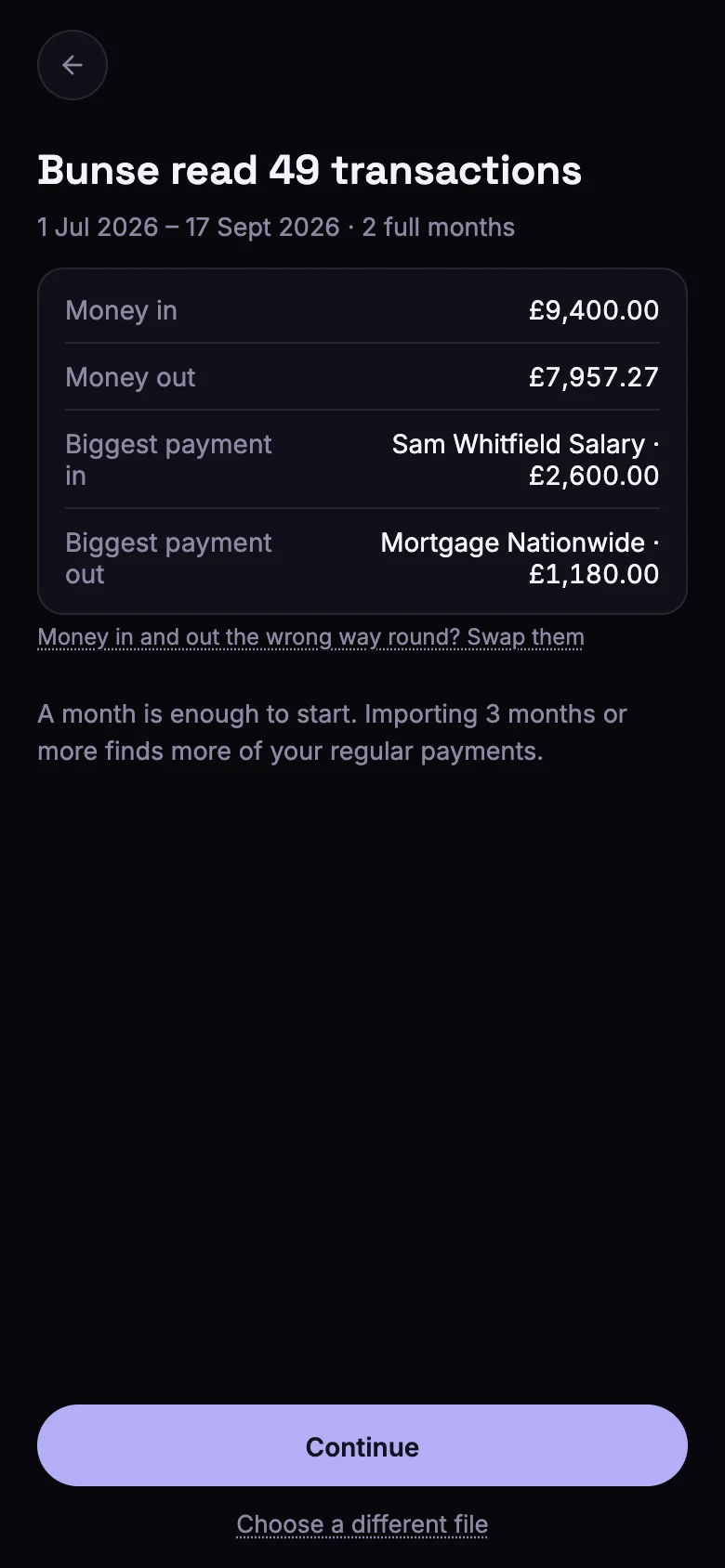
Bunse needs at least a month of transactions to spot your pay and regular bills. With less, you can choose another file or carry on anyway.
Check each part of your budget
Bunse takes you through what it found, one screen at a time. Rough figures are fine, and you can change anything later on the Budget tab.
- Your income. Tick what counts as your take-home pay. Other money coming in isn't counted unless you tick it. If nothing looks like pay, enter your usual monthly take-home pay, or skip it for now.
- Housing and regular payments. Your rent or mortgage. Some regular payments don't say what they're for, such as a standing order to a person, so Bunse asks. If you pay your rent or mortgage from another account, add it here.
- Your bills. The ones on your statement, plus the ones almost everyone has, like Council Tax. Skip any you don't pay.
- Your subscriptions. Each gets its own line, so a price rise is easy to spot. Anything that might not be a subscription starts unticked. Add any you pay from another account.
- Everyday spending. Set groceries, transport and eating out to what you actually spend in a month, including cash. Card payments only show part of it.
- Cards, loans and savings. Paying off a credit card or moving money to savings isn't spending, so it stays out of your budget. This screen only appears if your statement has these payments.
- Any savings? Add what you have now, and mark your rainy-day money.
Create your budget
The last screen shows your income, what's planned, what's left over and your savings, then how Bunse sorted every payment out on your statement. Tap Create my budget.
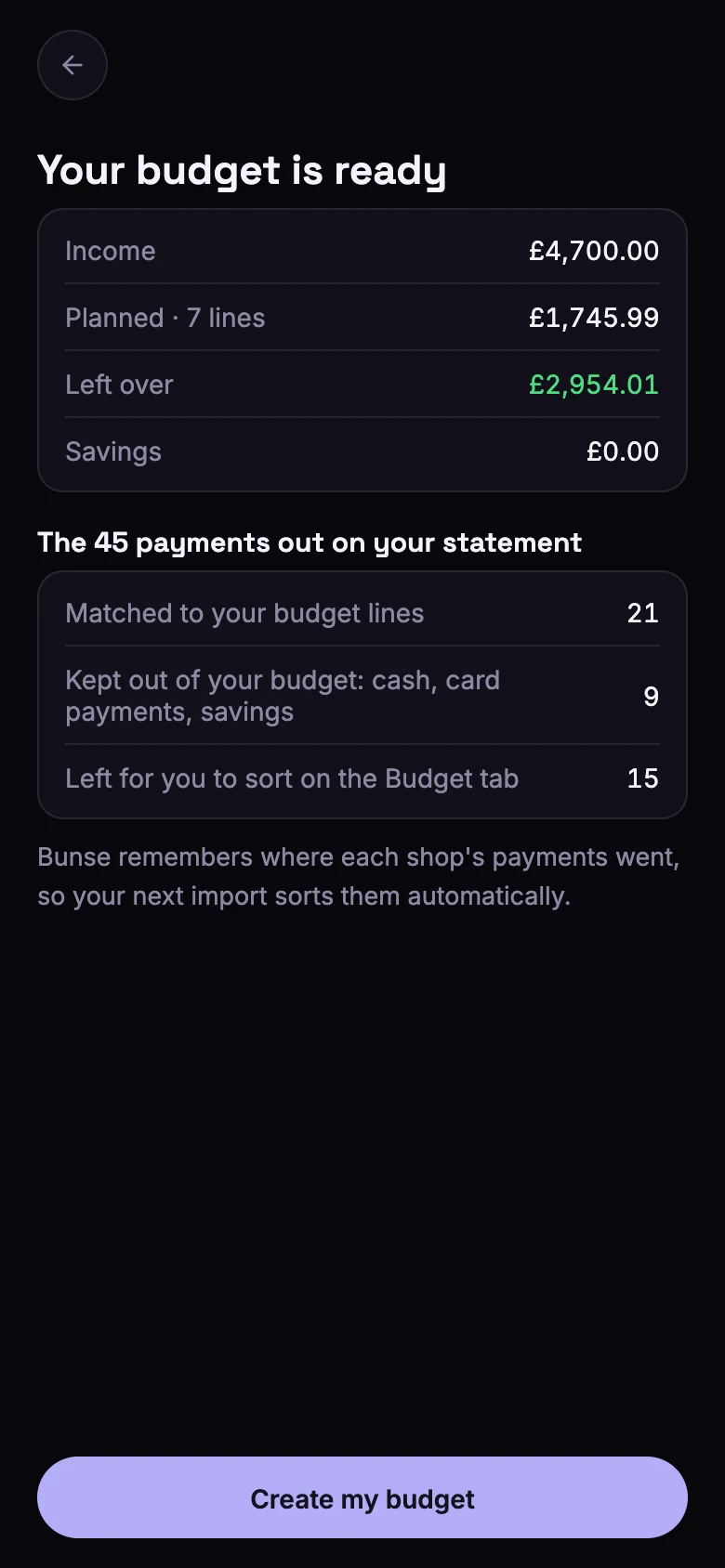
Bunse remembers where each shop's payments went, so the next statement you import sorts itself.
Need to stop part-way? Tap Finish later at the top, and Bunse creates your budget from what it's found so far. You can adjust it on the Budget tab.
On a phone, the last screen also lets you turn on Lock Bunse with your fingerprint or face.