Rename or merge merchants in Insights
Show a shop under a clearer name, or combine the different names one shop appears under.
Updated 1 October 2026
Insights › Merchants shows your spending by shop or company. Bunse tidies the names it recognises, so "TESCO STORES LONDON" and "TESCO EXPRESS" both show as Tesco. For anything else, you can choose the name yourself, and merge the different ways one shop appears on your statements.
Rename or merge a merchant
- Open Insights › Merchants and choose Trend.
- Tap the pencil next to the merchant.
- In Match any transaction containing, enter a word from the bank's description, such as
AMAZON. It needs at least three characters. - In Show as, enter the name you want, such as
Amazon. - Tap Merge.
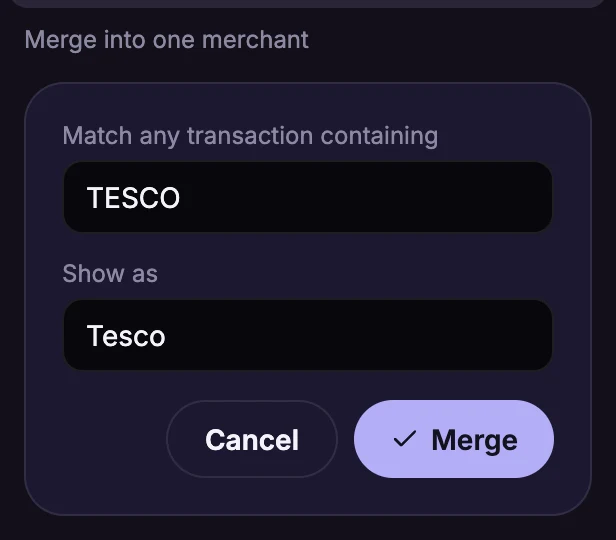
Every payment whose description contains that word now shows under the one name. This fixes shops like online retailers, whose statement descriptions include a different order number every time.
Irregular merchants
A merchant needs spending in at least two months to appear in Trend. One-off payments, and fragments of one shop split by changing references, are listed under Show irregular merchants at the bottom of the tab, where you can merge them the same way.
Change or remove a name
Tap Manage merchant names to see every name you've set up. Use the pencil to change one, or the bin to remove it.
Your names are also used when Bunse groups unmatched payments for you to assign on the Budget tab.